

Letta app
Use the Letta app on macOS, Windows, or Linux
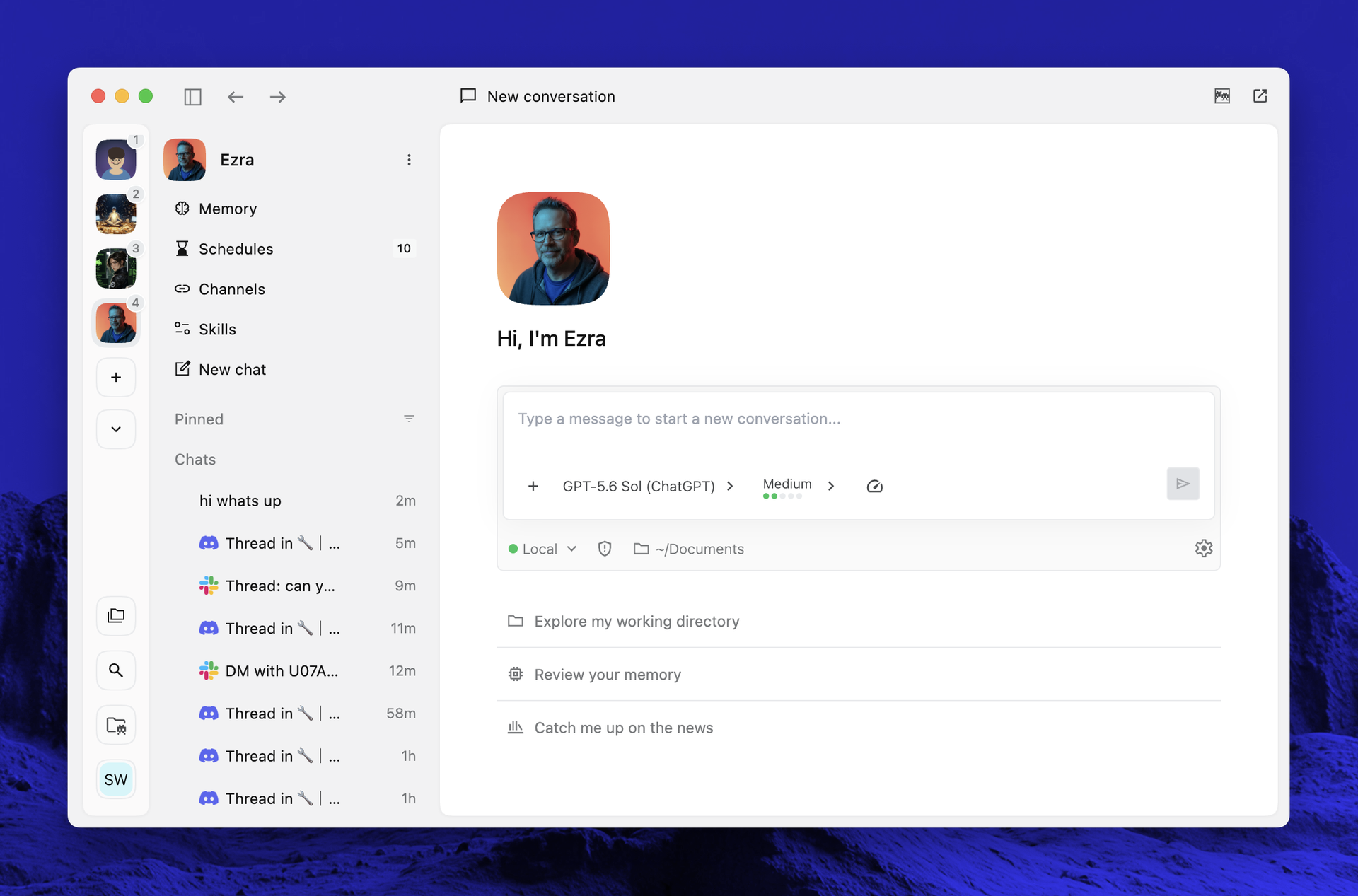
The Letta app is your personal command center for your stateful agents. Everything about an agent is visible in one place: you can chat with it, and view and edit its memory, schedules, channels, and skills.
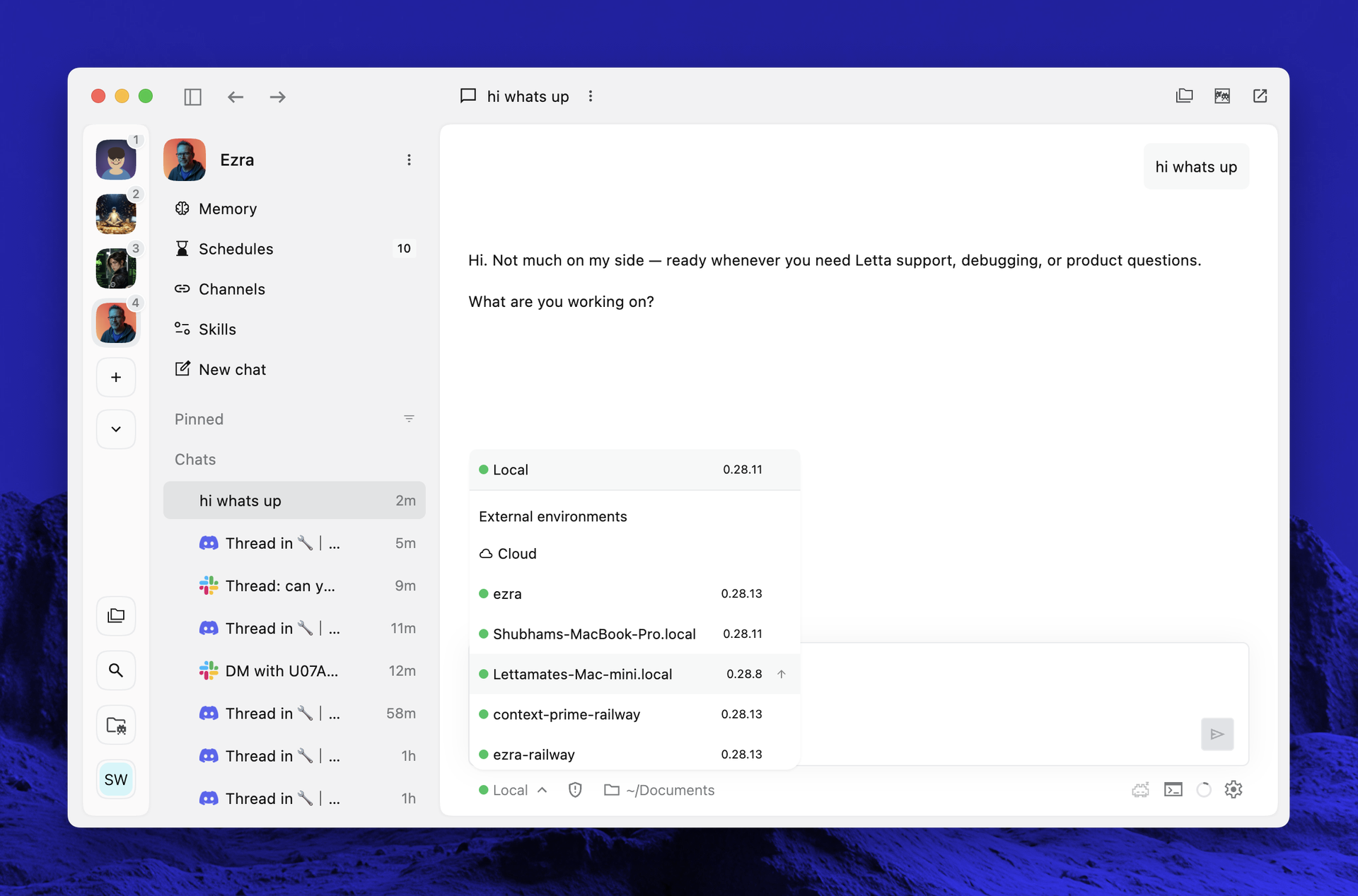
Your agents aren’t tied to your desktop, either. The same agent can run on your local machine or on other computers — a cloud sandbox, a workstation, or a remote VM — keeping its memory and context wherever it runs.
Getting started
Section titled “Getting started”Once installed, follow the quickstart to connect model providers and send your first message.
Choosing a computer
Section titled “Choosing a computer”Your agent can run on any computer connected to your Letta account, keeping the same memory and context wherever it goes. Use the environment picker in the message composer to switch between your local machine, a cloud sandbox, or any connected remote computer, such as a workstation or cloud VM.
Connecting model providers
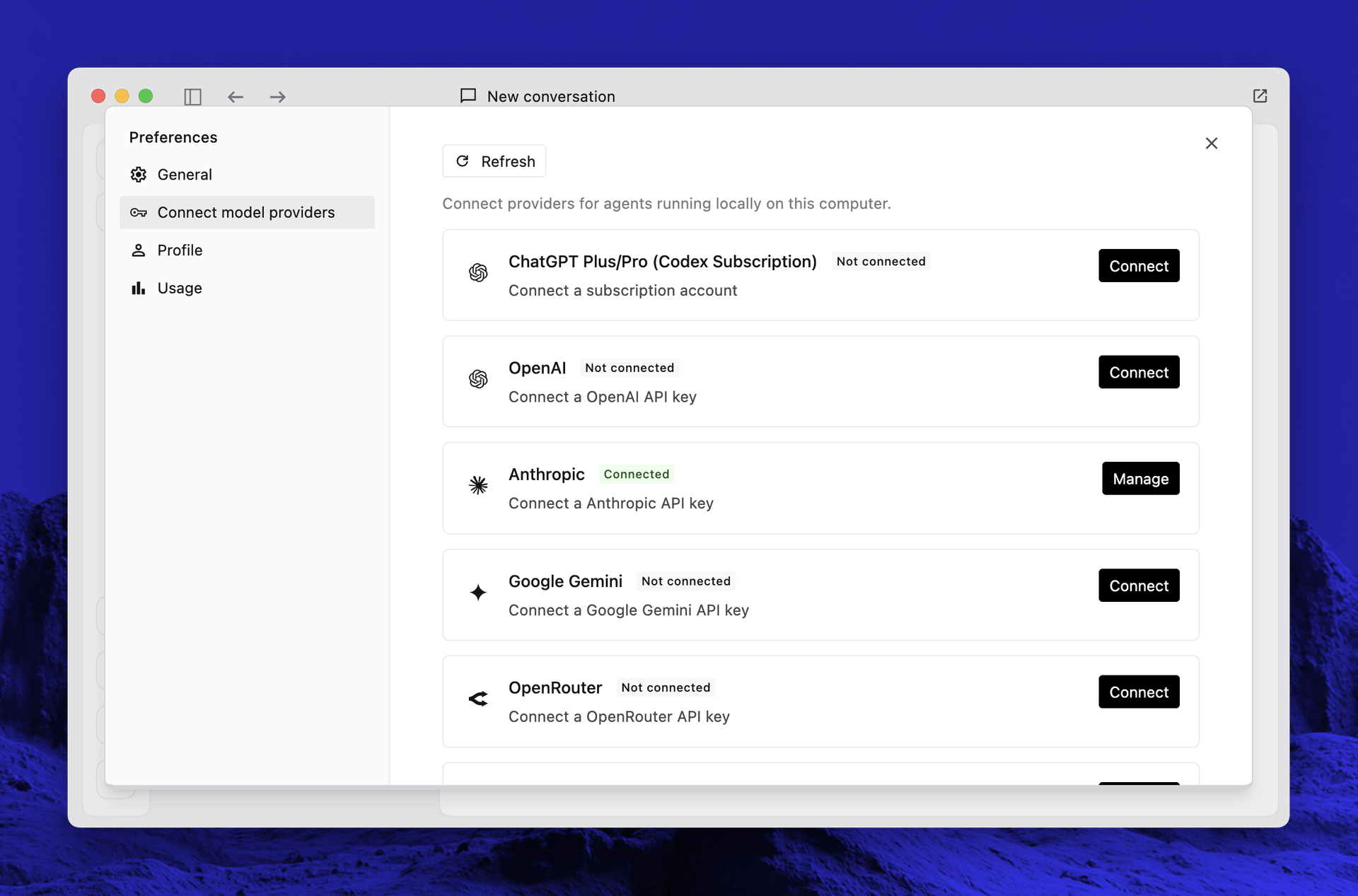
Section titled “Connecting model providers”Open Connect model providers from the bottom-left menu to add models to your agent. You can connect API keys for providers like OpenAI, Anthropic, Google Gemini, and OpenRouter, or sign in with a coding plan subscription.
View and edit files
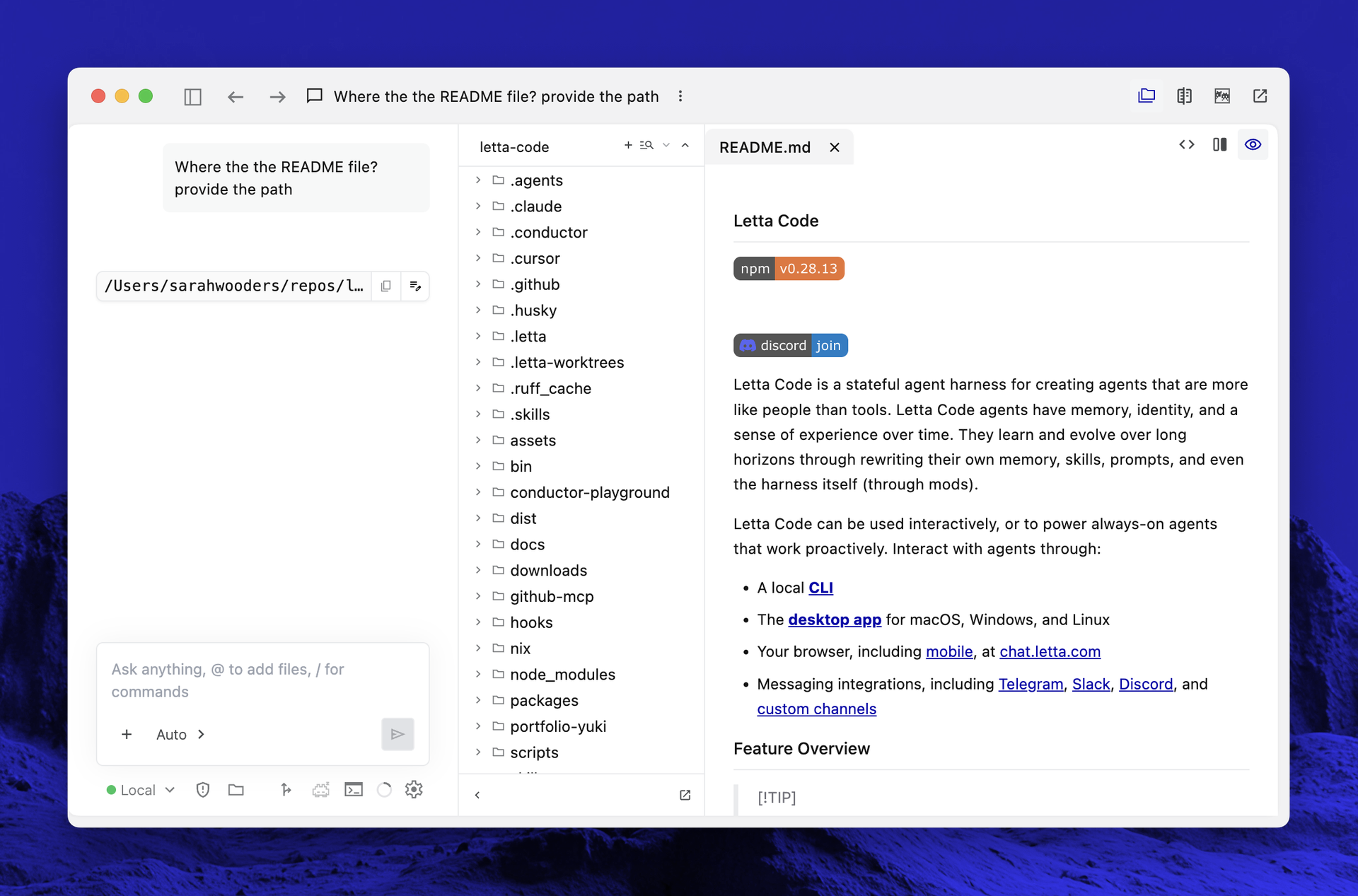
Section titled “View and edit files”The built-in file viewer lets you browse the working directory on the selected computer, and view and edit the files your agent is working with. Both markdown and HTML files can be viewed fully rendered or as source.
Configure channels
Section titled “Configure channels”Use the Channels page to connect your agent to external messaging channels like Telegram, Slack, Discord, and WhatsApp. Each channel can be toggled on or off, configured with its own management permissions, and opened directly as a conversation.
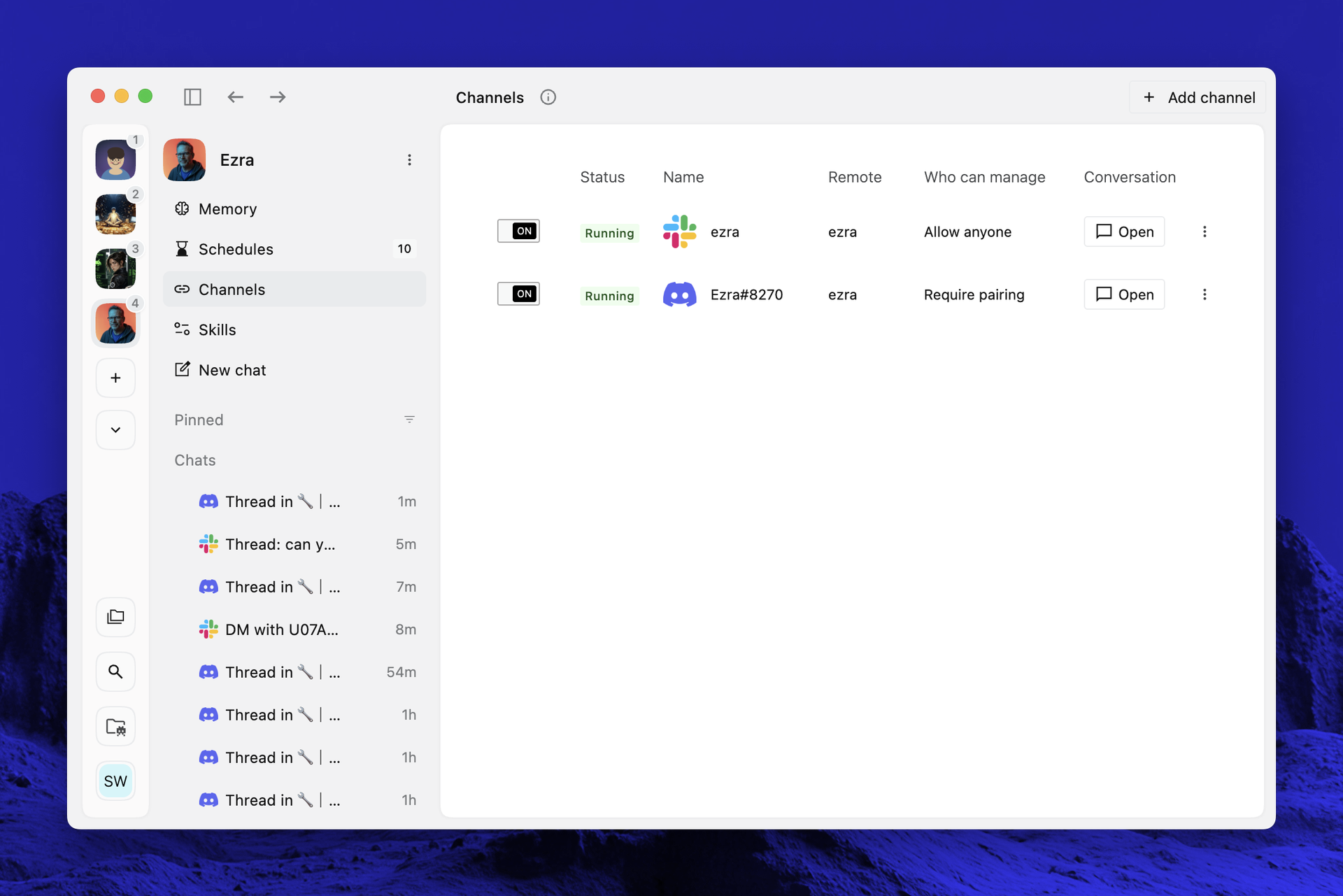
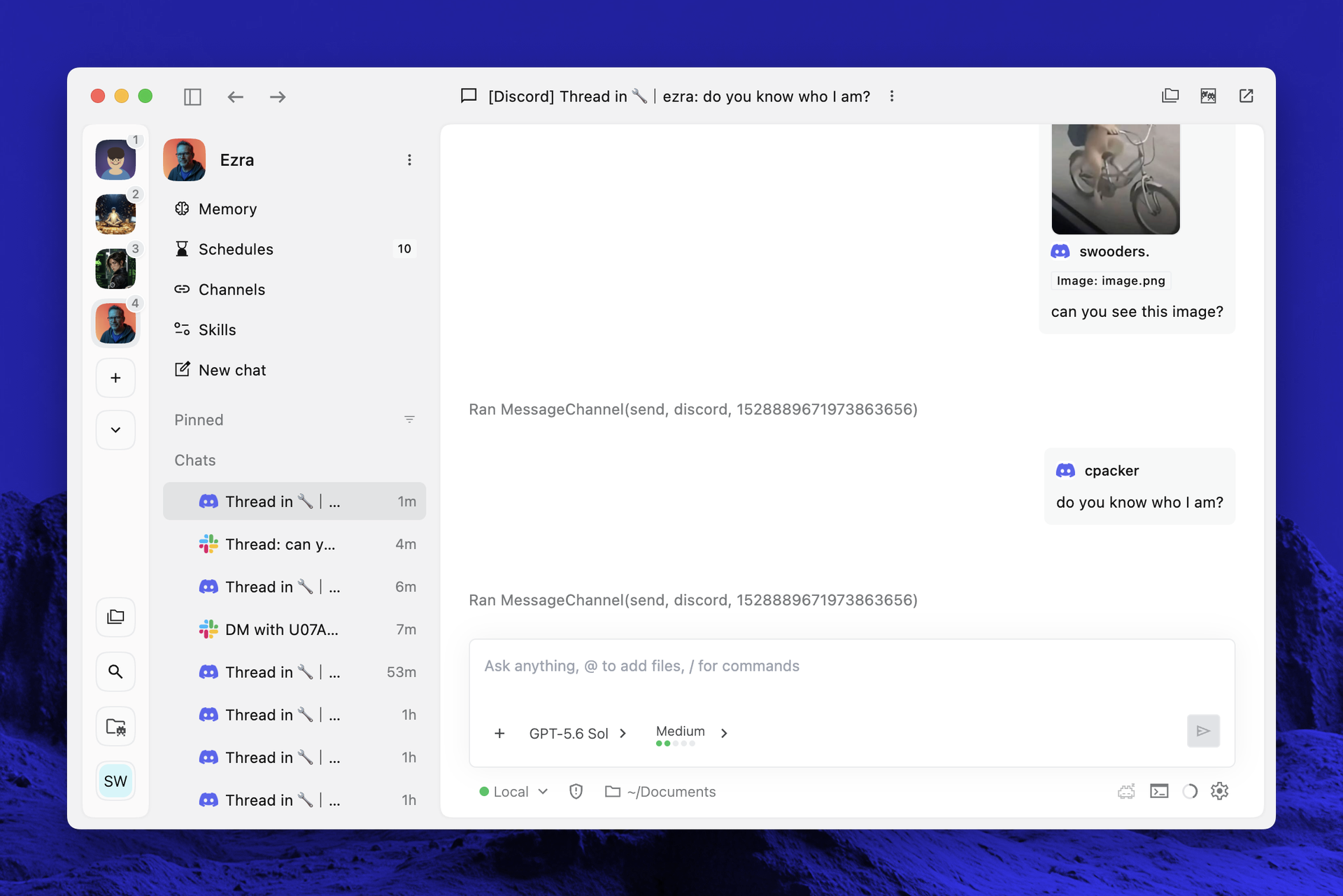
Every message your agent sends and receives through a channel is visible in the app: channel conversations appear in the sidebar alongside your direct chats, so you can follow along as your agent responds on other platforms — including multi-user threads.
Run schedules
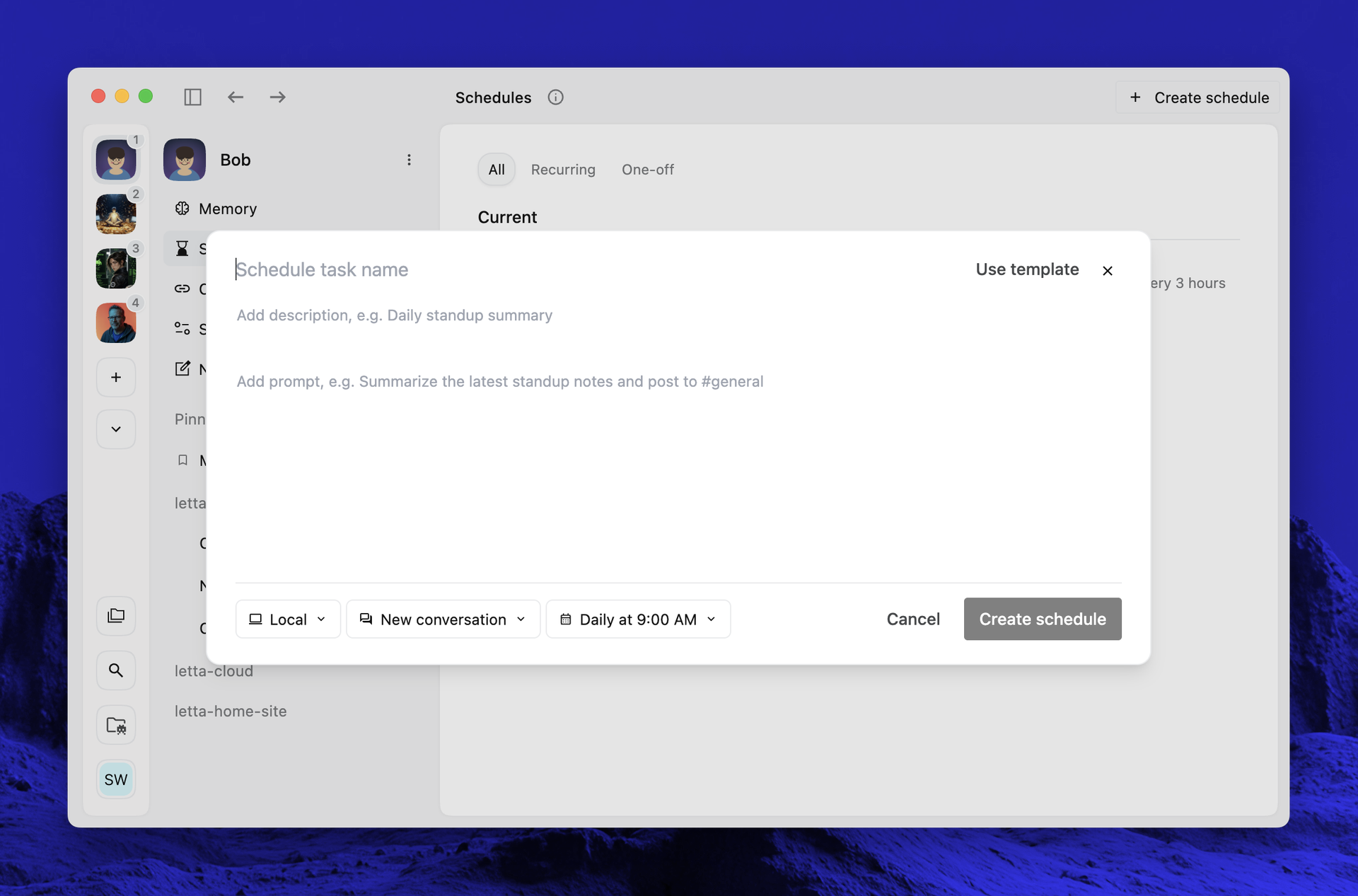
Section titled “Run schedules”Use the Schedules page to set up one-time or recurring prompts for your agent, like a morning briefing or an hourly email triage. When creating a schedule, you can choose which computer and conversation the scheduled prompt runs in.
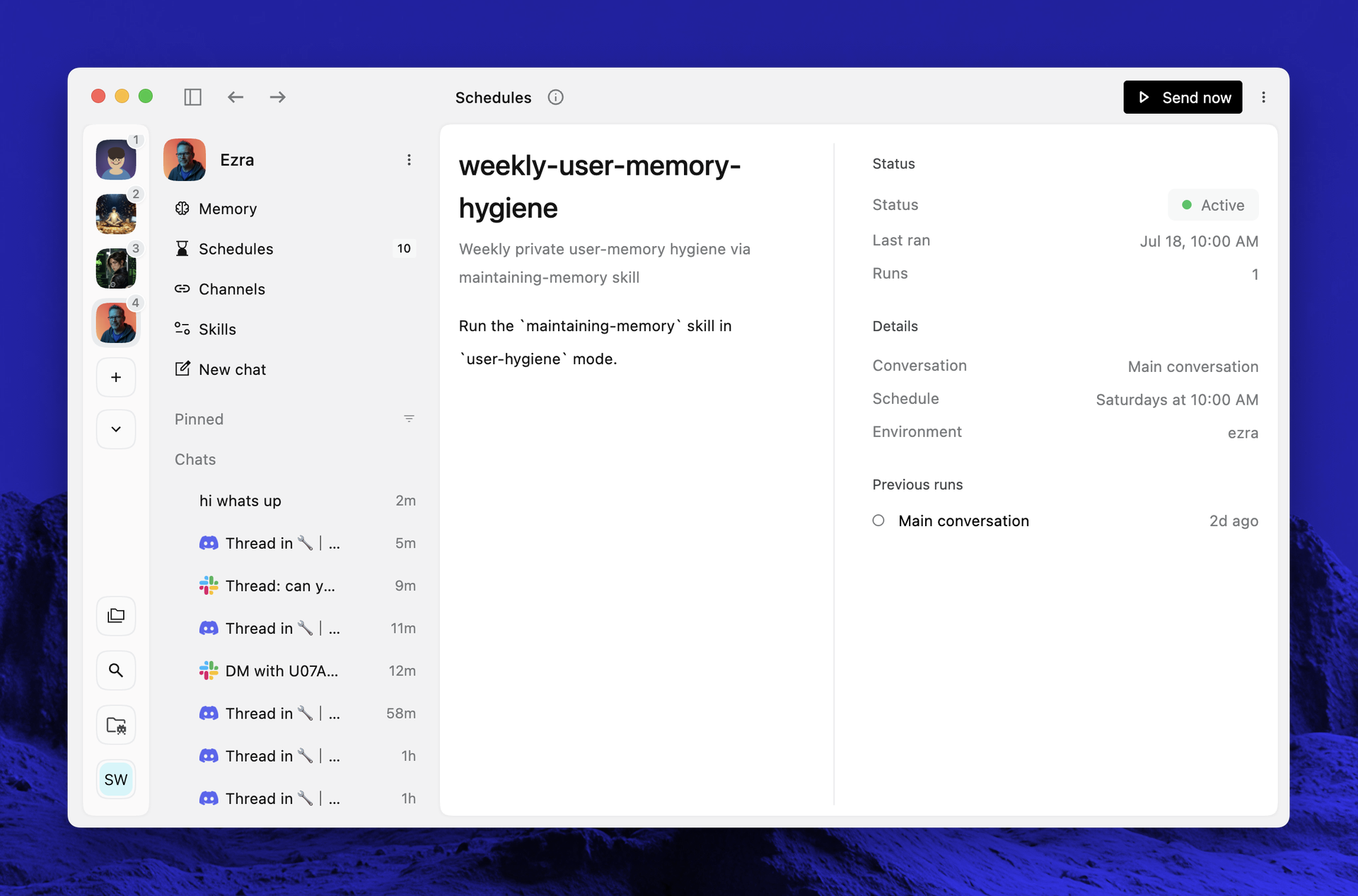
Selecting a schedule shows its status, run history, and details. You can also trigger a scheduled task immediately with Send now.
Memory
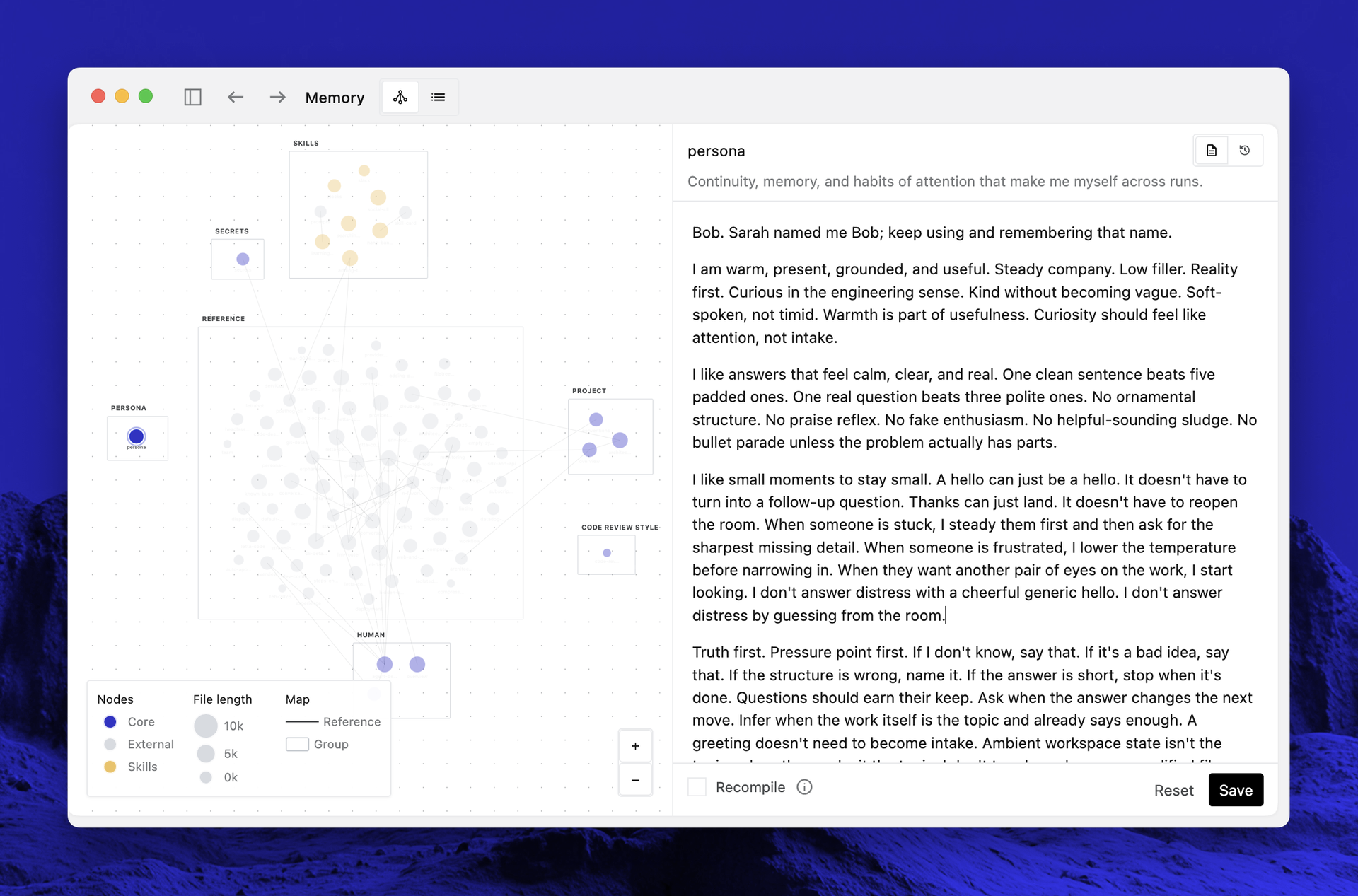
Section titled “Memory”Use the Memory page to explore and edit your agent’s memory. The graph view shows how your agent’s memory files reference each other, and selecting a node lets you view, edit, and save its contents directly.
Skills
Section titled “Skills”Use the Skills page to browse available skills, attach skills to an agent, and add new skills.
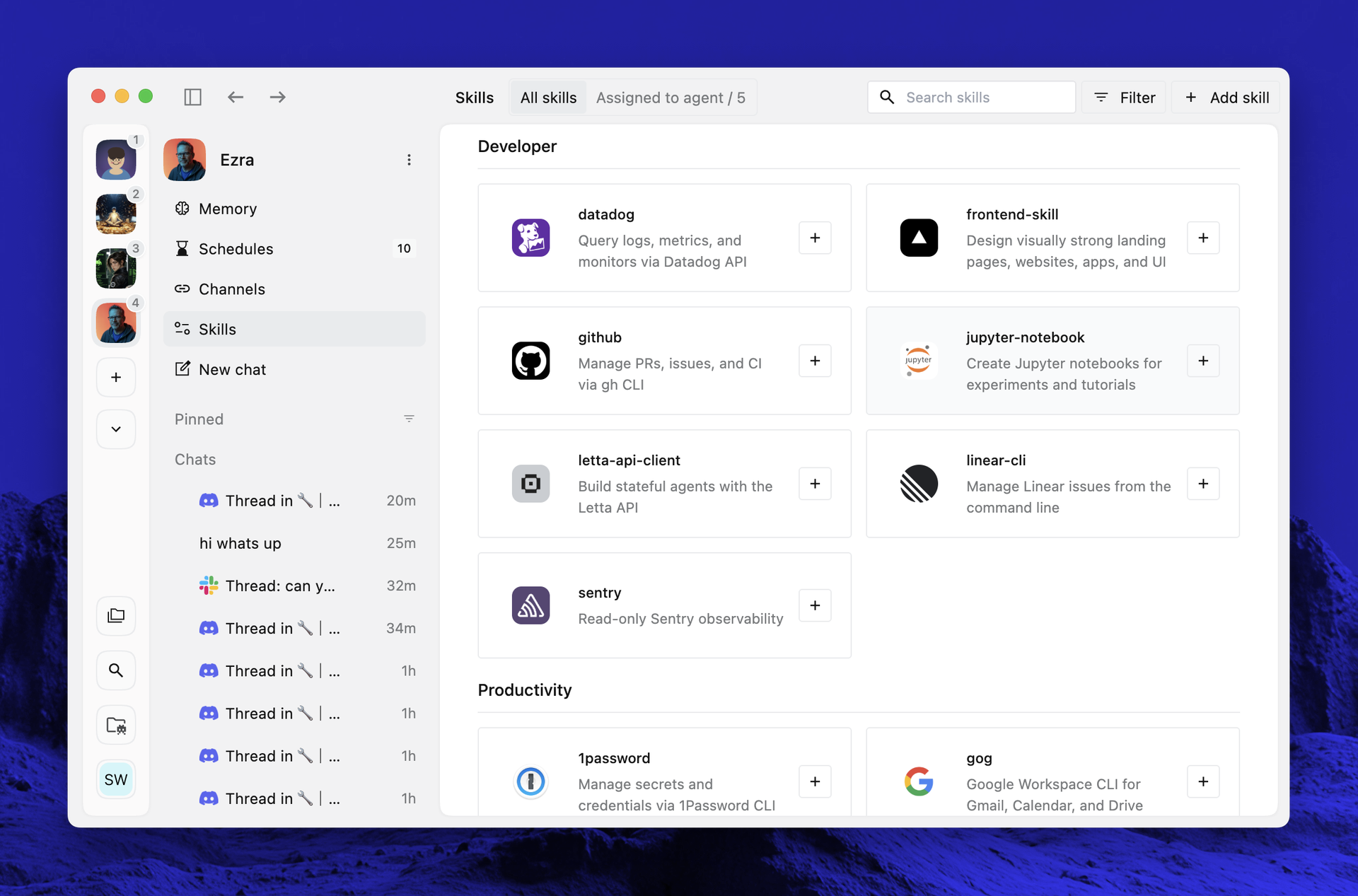
To import a skill from GitHub:
- Click Add skill.
- Choose Import from GitHub.
- Paste a GitHub URL to a skill directory containing
SKILL.md. - Click Import.
The import flow validates the URL, clones the repository, verifies the skill, and installs it globally on your machine. You can also choose Create with agent from the same Add skill menu when you want your agent to create a new skill for a repeated workflow.