

Letta web app
Use chat.letta.com to work with your Letta agents from any browser
You can use the Letta web app from your browser or phone at chat.letta.com. Your agents, memory, conversations, and tools carry over from the Letta app and CLI, so you can start a task on one device and continue it somewhere else.
Web / mobile setup
Section titled “Web / mobile setup”To get setup visit chat.letta.com and create an account or login. Agents you create in the web app are backed up to your Letta account, so you can access them from any device, including the CLI and desktop app, as long as you use the same login.
Computers
Section titled “Computers”On web and mobile, you can choose which computer your agent uses. Move the same agent, with the same memories and context, from one computer to another.
Cloud sandboxes
Section titled “Cloud sandboxes”By default, agents on chat.letta.com use a managed cloud sandbox. Sandboxes are useful for quick tasks because they require no setup and keep execution separate from your laptop.
Your own computers
Section titled “Your own computers”If you want the agent to work on a specific computer — for example, your laptop, workstation, or a cloud VM — connect your own machine. Once connected, select it from the computer picker in chat.letta.com. The agent’s shell commands, file operations, and tool calls will run there instead of in the sandbox.
You can also use the filesystem icon to edit code and files directly on the selected computer.
To make a computer available from chat.letta.com, install the Letta CLI on that computer, then run letta server to connect it to your Letta account. For more information, see Bring your own machine.
Connect your personal computer
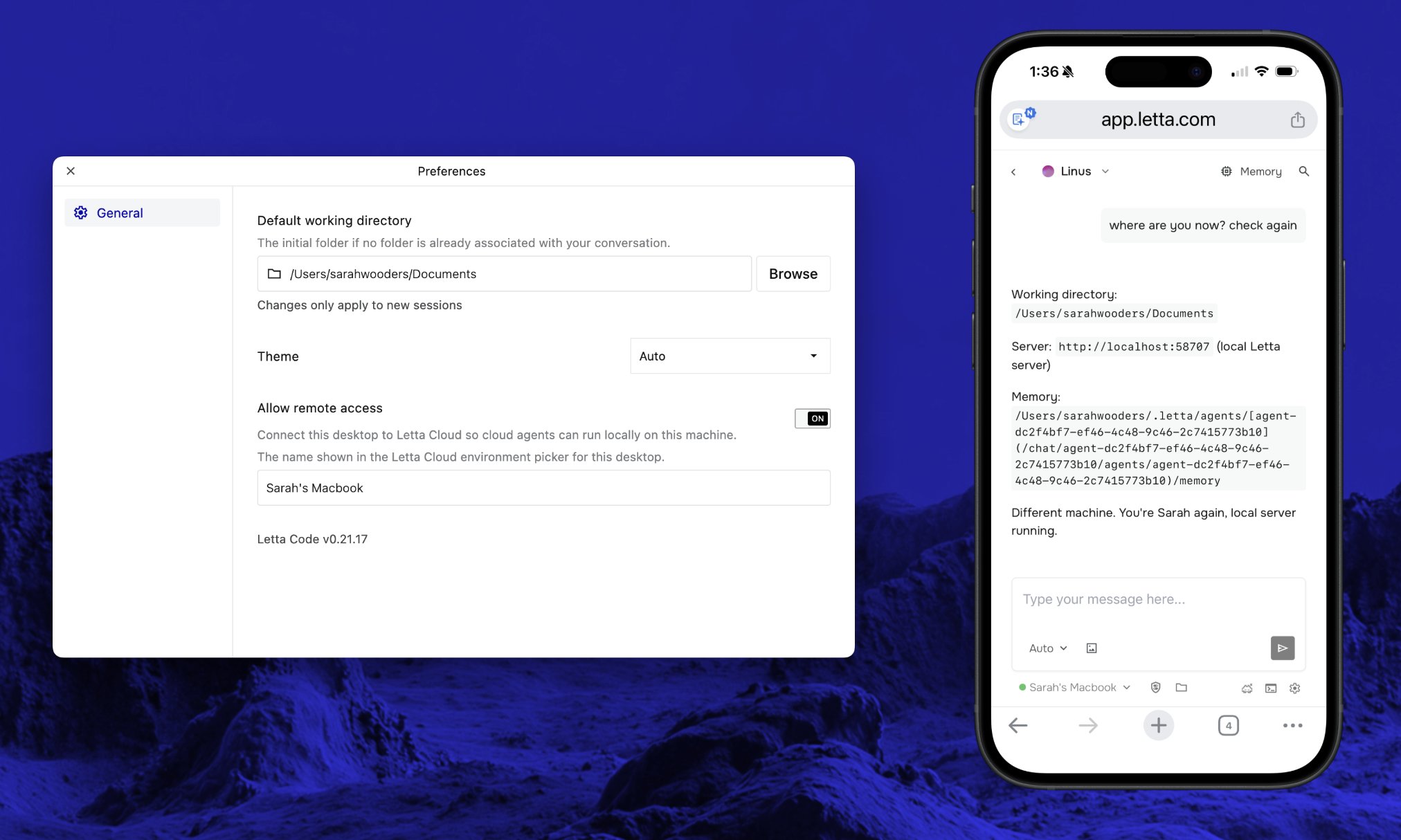
Section titled “Connect your personal computer”The simplest way to make your computer available from web and mobile is to download the Letta app, then toggle “Allow remote access” from the settings page.
Alternatively, download the CLI and run letta server in a terminal window.